 CatchCount
 › Installation
How to install CatchCount on your phone and computer
CatchCount is a web app: it installs from the browser in a few seconds and then launches from its own icon, full screen and with offline support.
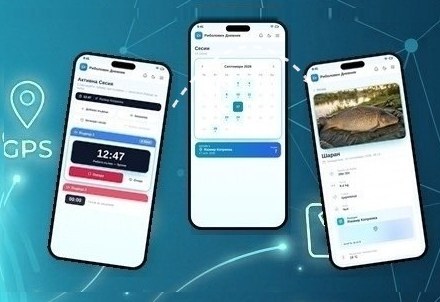
Android (Chrome)
- Open catchcount.app in Chrome.
- Tap the ⋮ menu at the top right.
- Choose “Install app” (or “Add to Home screen”).
- Confirm. The icon appears on your home screen.
iPhone and iPad (Safari)
- Open catchcount.app in Safari — installation is not available in other browsers on iPhone.
- Tap the “Share” button (a square with an up arrow).
- Choose “Add to Home Screen”.
- Confirm with “Add”.
Computer (Chrome or Edge)
- Open catchcount.app.
- At the end of the address bar, click the install icon, or choose the menu → “Install CatchCount”.
Permissions that help
- Location — to record the place of the catch automatically.
- Notifications — for the rod timer reminder.
You don't need to download the app from a store, so it updates itself when there is a new version. After installing, log in while you have internet. Then it works without a connection too.
Frequently asked questions
- Why don't I see “Install” in Chrome?
- Update Chrome and reload the page. If the app is already installed, the option is not shown.
- Does the app take up a lot of space?
- No. The installation is small, and catch photos are compressed before they are saved.
Start keeping your catch diary today.
Signing up takes a minute, and the app installs straight from your browser.
Create an account Scan to sign up